You may transfer an item from a rental to a sale, or from a sale to a rental. You can transfer a rental to a sale from the rental browse. You can transfer a sale to a rental from the sale browse.
From the POS Screen 2, you can transfer either way. Simply highlight the item by using the F9 key or the mouse. You can press CTRL R to transfer a sale to a rental, or press CTRL S to transfer a rental to a sale.
Or you can click on a new button that will appear over the top of the customers picture:
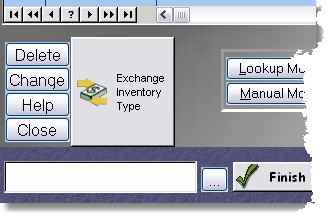
The button is automatic. If the item you are highlighting is a sale item, it will transfer it to a rental. If the item is a rental item, it will transfer it to a sale item.
There is security under the TRANSACT category in security settings.
If the rental type or sale type is not filled in (in the inventory item), the program will ask you for the correct item type and give you a list.
If you are transferring a sale to a rental, and the quantity of the sale items are greater than one, the program will ask you to scan in or type in a new item ID or Barcode, then it will create a brand new item with that number as a rental item with a quantity of one. It will also reduce the quantity of the sale item by 1.
If you are transferring a rental item to a sale item, and you didn't fill in the used price in the inventory item, the program will ask you for the price.
When the program transfers the item, it will remember the old item type it used to be, and save that in the used type or rental type (depending on which way you're going to transfer). That way, if you transfer the item, you can transfer it right back and it will not ask any questions.
Remember, this not only transfers the item on the rental screen, but also changes the inventory item itself.