This is an alternative POS/Rental screen for Selling or renting items. This screen was created for the customer to use, however, clerks may use it as well. Because it was created for the customer, your clerks will have no problem using it.
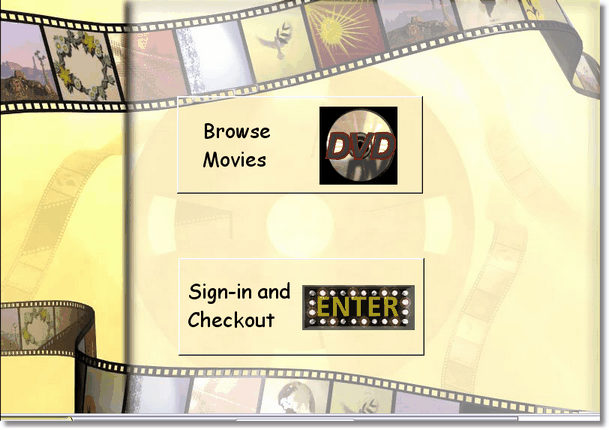
If touch screen is turned on, pressing or clicking on the $ from the main menu will display this screen. Although this is meant to be used in a touch screen environment, using a mouse will work just as well. (After all, a touch screen is just a big mouse anyway.) If you are allowing customers to use this screen, make the keyboard inaccessible to them. To get out of this screen, press escape on the keyboard.
You may select the Browse Movies button, select a movie, then the program will automatically take you to the Sign-in and Checkout screen.
Setting up the different parameters for the Touch Screen is located in the Store Maintenance Menu under Touch Screen. If it does not display, it is because the Touch Screen has not been activated.