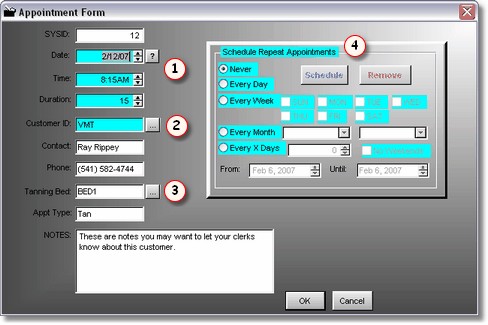
When you double click or click on change on an appointment time, this is the form that will display.
The Date and Time  will display automatically from the Date and Time slot you clicked on in the Appointments Calendar. You can change it here. The duration is important, you must put in a duration (in minutes) for how long the tan should last. You may even want to make the duration 5 to 10 minutes longer so you can clean the room. This will prevent over booking and conflicts.
You must select the Customer by clicking on the 3 dots (ellipse).  This will bring up the standard customer lookup table. Lookup the customer like usual, and click select.
And the final requirement to complete the tanning schedule is to select the tanning bed.  (You must of course already have tanning beds in your tanning inventory). The appointment type can be left blank, or you can type something in (like "TAN"). You may also type something in the notes area. After that, just press enter or click OK to save the tanning schedule for this customer, for this bed.
 Once you have created a tanning schedule, it is possible to copy that same schedule multiple times. This is a very powerful feature, and your customers will really appreciate it.