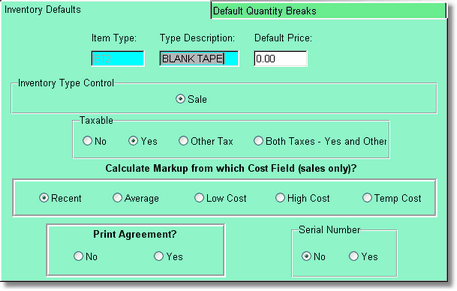
Let's say you sell magazines, blank tapes, candy and popcorn. You would probably make 4 Sale Item types like MAG, BT2, CAN, POP, or something like that (remember you will also type in a description for the item type.) So when you enter your inventory, you will select the kind of inventory it is. If you have small popcorn, medium popcorn, and large popcorn, you will have 3 different inventory items, but you will select POP for the item type for all 3. That way you can get reports on all popcorn sold, no matter what the size.
In most cases you will want to leave the default price at zero. This way you will be forced to put a price in the actual inventory item, which is where the price will come from. If you do put a price in here, the program will bring in these default prices when you first add an inventory item with that item type.
The taxable, Calculate markup, and serial numbers are defaults, and can be changed in the inventory item itself. See the discussion in the Company Setup Sales Area about the markup feature.
Print Agreement allows certain invoices to print a special rental agreement only if this type of item is sold... even though you may sell other item types. This would work great for an arcade type of item. Perhaps you have video games in the store that you let people play. When you sell them time or tokens for the video games, a special agreement could print with your invoice. This will only work for Report Manager Invoices. (# 9 is a good example).
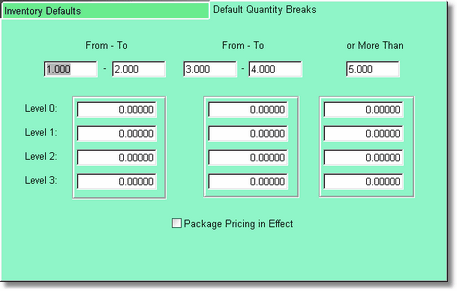
Once again, you will probably not want to put prices in here as they will automatically be added to each inventory item you add (when you choose this item type). However, you may want to put the quantity breaks in, at least what we show above (Quantity breaks are actually added automatically when you add the first Sales Item type).
You will notice at the bottom of the screen: Package Pricing in Effect. This is an option that allows you to make package pricing for all of one Item Type. Notice that when you put a checkmark in the Package Pricing in Effect, the screen changes.
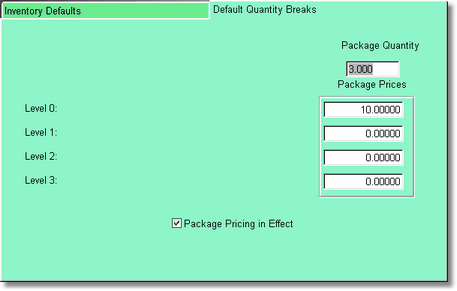
The package Quantity is a trigger quantity. The moment there are 3 (in this case) item types on the screen (or more), all prices will change to match the package price.
For instance, let's say your used DVD Bin prices were $5 per dvd. But if you buy 3, they are $10 for all 3. They can be all different ID numbers or barcodes, only the item type matters.
The first dvd (number 1001) will scan in for $5. Then 2nd dvd ( number 2432) will scan in for $5. The 3rd dvd (number 7890) will cause dvd's to be changed to $3.33, $3.33, and $3.34.
If you put in a quantity greater than the trigger or package quantity (3 in this case), the program will split the item into an item with a quantity of 2 for the normal price, then another 2 for the price of $3.33, and another 1 for the price of $3.34. It must split it down so there is no more than the amount of the package quantity, and if there is going to be an odd amount, it has to split out one more quantity to give that one item the odd amount ($3.34 in this case). That is because you cannot have a price of less than a penny. Well you could, but it would make it even more confusing. This way you are assured of the right amount.
Notice you can still use the customer break levels of 0 through 3 to apply package pricing. You could set it up to where only clerks or perhaps senior citizens, or a club, get the 3 for $10 pricing.
Remember, this pricing applies to sales item types only.
If you delete items that have already had the package price applied to them, the other items will not recalculate. It is better to press F7 and cancel them all off the screen and start over. Perhaps we will add this capability in the future.