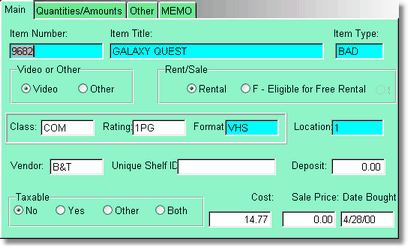
After pressing ENTER or clicking Change, on a inventory item, the Inventory Form displays that items information. Once you are in the Inventory Form, you may edit most of the fields in that inventory item, if you have the right security level. To save changes, continue pressing TAB all the way through the form until the Inventory Lookup Table is again displayed, or click on OK. If you made changes in the form and you do not want to save them, back out of the form by pressing ESCAPE, or clicking on Cancel.
This is the entry form where you will be entering most of your inventory. It is good to know how to enter data here. There are some tricks that will help you.
ID Number
First, you must enter a unique inventory ID number. You can simply scan it in from a barcode, or type it. If you scan it the Item Title will be selected, otherwise you will need to press the tab key. If you are using the Rental Wizard, the Item number may be added for you if you have it set up in the More Company Info Form.
Possible Numbering Systems
There are many different ways you can number your rental and sales inventory. If you have already numbered your inventory, and like your system, then use it as it is, and skip this section.
If you have not yet numbered your inventory, then read on.
First, you need to consider the number of items you will enter into the program now, and in the future. Because we allow the flexibility of both numbers and letters in your item ID's, the computer sorts item ID numbers left to right instead of numerical order. The following numbers would be sorted 1, 10, 100, 2, 20, etc. For this reason, it is suggested that you use the same amount of characters or numbers for all items ( 0001, 0002, 0010, 0020, 0100 ). This produces a display, that is pleasing to the eye and makes sense.
For example, if you anticipate 5000 items, you would want to use 4 digits for all movies. When you have more than one item with the same title, you could use letters to indicate duplicates. 5000A would be your first movie, 5000B would be your second movie, 5000C would be your third, and so on. However, this can have it's drawbacks. You might sell one out of the middle of the group. If you order pre-printed barcodes this will not work at all. And really, it is not necessary, because you will see your duplicates right on the screen when you look at the browse in Item Title order. It might be better to go 5001, 5002, etc.
Item Title
When entering the item title, try to spell it correctly, and do not add anything to it like DVD or VHS. Some people do that to differentiate their movies. We have other fields that are specifically meant for tracking your format. Later on, if you have more movies with the same title, you will want to use the Replicate or Duplicate functions.
Item Type
This is probably the most important field to get right. When you are entering a new item, the Item Type Table will automatically be displayed. If you are editing a pre-existing item, you can right click on the Item Type field to display the Item Type Table, or erase the item type and press tab. See Inventory Lookups for a further discussion on Item Types.
Video or Other
If this item is an equipment rental like a VCR or DVD player, or a camera, it should be an other. Others do not count as a video for free movies. If you choose Other, you will not be prompted to type in the classification, rating, or format. V will already be filled in, so normally you just press tab to get past this. You can select the Other with your mouse, or use your right cursor key. Press tab to continue.
Rental or Free
This is usually filled out for you when you select the item type. Rental means it is a rental and is not qualified to be a free movie if the customers have free movies coming. Free means that if they DO have free movies coming, this movie qualifies to be free. Press tab to continue.
(The next 3 fields only show up if you selected Video under Video or Other)
Classification
This is used for your genre in most cases, like comedy, drama, action, adventure, etc. The classification table will automatically display. To select, use your mouse and double click, or use your keyboard and cursor down then press enter, or use your keyboard by typing in the first one or two characters then pressing enter. Once selected, you will automatically be taken to the ratings table.
This is the rating of the movie. If you would like the program to be able to prevent certain family members from renting certain ratings, you must put a number at the beginning of the rating. (0G, 1PG, 2PG13, 3R, 4NC17, 5X) for instance. This allows you to rate your games as well. It is the number that counts. Select your rating, again, by pressing enter or double clicking. There are 5 characters possible.
Format
This is the media type, VHS, DVD, NIN, CD, etc. Select the format and continue. Remember, all inventory reports with an asterisk ( * ) can be filtered by format. There are 5 characters possible
Location
This could just be STORE. Or you might want to put the shelf number or row number. There are 5 characters and a 15 character description for location.
Vendor
You could put in just your store for a vendor, or put in the actual vendor. There are 4 characters available for the abbreviation.
Unique Shelf ID
This is a 12 character field for use if you have different numbers on your shelves (where you actually store your inventory). It is unique.
Deposit
This is used only if you have a deposit on an item every time, like a vcr or dvd player.
Taxable
This will come in from the item type and be filled in already.
Cost
It is a good idea to fill in the cost of the item. This will give much better reports. This is how much it cost YOU to purchase the item.
Sale Price
This can be filled in, but is being phased out. The Used Price is what the item will actually be sold for if you transfer it to a sale item.
Date Bought
This should be filled in for you from today's date.