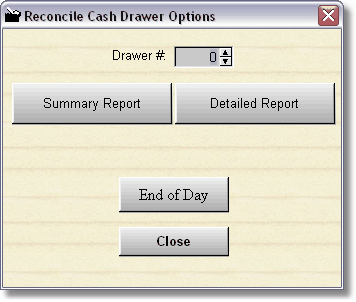
When you choose Reconcile Cash Drawer, this is the first screen you will see. Choose between a Summary Report (which is a balance sheet), or a Detailed transaction listing with balance sheet. The Reconcile Cash Drawer option should be used every time you balance your cash drawer. This is the only way to ' prove ' your money is in balance with the program.
The Detailed Report prints a detailed listing and balance sheet which prints every transaction (uses lots of paper). Use this option when you are looking for a problem.
There are more reports on a menu item UP above this window.
Remember, once you do and End of Day (purge), you will NOT be able to print out these reports. You will be able to get the totals from the Standard Reports under Purged Transaction Data, but not the details. However, you can print the reports any time you like, and it will not affect the end of day.
The reports here, and the end of day both use the drawer # as a filter. So it will only print out and purge for one drawer # at a time. If you are on a network and have 2 or more cash drawers, you will probably assign a different cash drawer for each computer. From here, you can go ahead and print and reconcile for the other computers cash drawers just by changing the cash drawer number. Even if you have 2 cash drawers, you can use the same number, but when you reconcile you will need to combine the money from both physical drawers together.
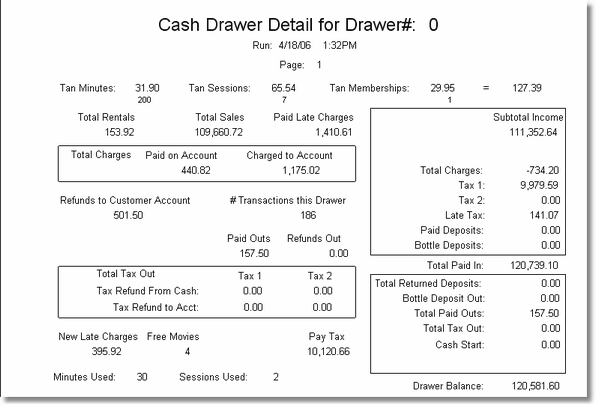
This is the report that you will be concerned with. At the top you will notice there are Tanning Minutes, sessions, etc. These will not be in the report if you don't have the tanning option turned on.
The main figure you should be concerned with is the drawer balance, at the bottom right. If this is wrong, you may want to print out the detailed report BEFORE you do the actual End of Day. Remember, if you did not do a cash start, you will need to manually subtract the cash drawers starting amount.
NOTE: Financial reports in the Reconcile area all have security to print, but they also have security in order to preview the reports. If the clerk doesn't have high enough security, the report will print directly to the printer instead of previewing. This prevents clerks from " Browsing " through your financial data. There will be no question asking you to preview, it will just preview or print, depending on your security level. Of course you can change this in the security levels area.