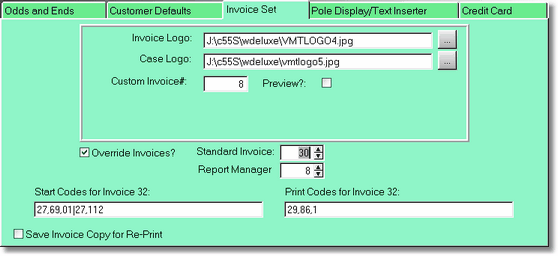
Invoice Logo
This must be a .jpg image file. It is a variable called cm2:logo1 when you are creating invoices in report manager.
Case Logo
This also must be a .jpg file.
Custom Invoice
There are 2 places you can make a custom invoice, the Report Layout Manager, and the Report Manager. If you have the Company Setup form Invoice Type set to Invoice 20, the invoice here will be from the Report Layout Manager. If the Company Setup has Invoice 30, the invoice here will be from the Report Manager.
Override Invoices
This is a setting that is only valid on THIS computer. If you choose override invoices, you will be able to select a different invoice for this computer. You must set this up for each computer, or the program will assume the invoice is the one you setup in the company setup and / or the Custom Invoice Above.
Invoice 32 Control Codes
Note: This is set in an INI file on this computer only. If you are on a network, you must set these codes on each computer.
Invoice 32 is a 40 column invoice that actually writes one line at a time to the parallel port. This bypasses the windows print engine and makes the printing time extremely fast. However, because we bypass the windows print engine, there is no way to control the printer, except for the old printer control codes.
You can type in the control codes specified by your printer into the start codes, where codes are sent to the printer before it starts printing (bold print, open cash drawer, etc.), or the printer codes, which are sent after the receipt is printed (automatic tearoff, form feed, etc.)
Each code is separated by a comma ( , ), and there should be no spaces. If you want to put more than one set of control codes, separate them with a ( | ), and again, no spaces.
In the example above we are putting the Epson TM 88 III printer into bold print (27,69,1) and opening the cash drawer (27,112), before the receipt prints. After the receipt prints, we send a (29,86,1) to do a partial cutoff.
This may be different for your printer of course. These are called Escape codes or ESC/POS codes. If you are using a windows print driver, you can set these up in the driver, but in this case, we don't have a driver, we are printing directly to the printer, #32 in Company Setup, Invoice Type.