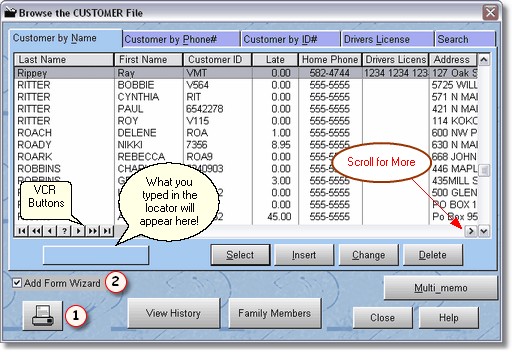
Normally you will see this screen when you press F3 from POS Screen 1. You can also access the customer browse from the Main Menu.
To find a customer, just start typing their last name, as you type, the locator will display a name closer to the one you are looking for. Once you have highlighted the correct customer, you may click on select to choose the customer (to sell or rent to), or click change, to edit the customers information.
Remember, if you got to this screen by way of the F3 button in POS Screen 1, pressing enter will select the customer. If you got to this screen by way of the main menu, pressing enter will let you edit the customer. (That is because this screen is actually a lookup when called from POS Screen 1).

You may search for the customer by: Customer (last) Name, Phone #, Customer by ID #, or you can do a Query ( search ) for customers. Use the mouse to choose the method you want and click on that tab. The Customer by Name Option shows customers in last name order, this is the default. The Customer by Phone # searches and displays in phone number. The Customers by ID Number displays customers in ID number order.
You may search with the Fuzzy Search, and it will try and located any matches to any fields on the table. If you typed in Old, you may get a last name, a first name, an address, or a status with ' OLD ' in it. See the column under Match results. (You can scroll to the right and get more columns). Remember: a search is very slow as it literally searches through your entire database, one record at a time.
You may also use the VCR Buttons to scroll through the customer records.
With the customer highlighted you can print a Rental Agreement form by clicking on the picture of the printer in the  left corner.
You can view history for that customer, view reservations, view family members or see multi memos by clicking on the buttons on the bottom of the screen.
In most cases you will simply start typing the last name, highlight the item, and select or press enter.
This is also the screen where you will add a customer. Simply press INSert on your keyboard, or click the insert button on the screen. The customer Form will then display. If you have the Add Form Wizard  turned on, the Customer Wizard form will display. This is a much faster way of adding a new customer.