The Customer add wizard makes it much easier for you and your clerks to add customers. The fields that are calculated, like total fields for instance, are not shown on the screen.
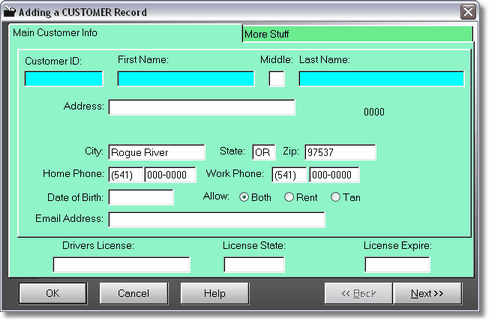
The first screen on the Customer Add Wizard shows the main information that you will probably want. The Customer ID, First Name, and Last Name fields are required. Press Tab to go from field to field. Notice that the city, state, zip, and area code are already filled in. This is because we filled them in under More Company Info, Customer Defaults.
The ID number did not fill in here because I already had that ID in the system. In my Customer Defaults, I had the Customer ID as 10000, but I already had a 10001, so it gave me an indication screen. I just clicked and continued. I will assign my own ID number to this customer. Many times people just use the phone number without the dash for an ID number.
Press tab, filling out the information as you go. Once you press tab on the license expire field, you will be taken to the next screen. When you are done, just click on OK or press enter to save the customer record.