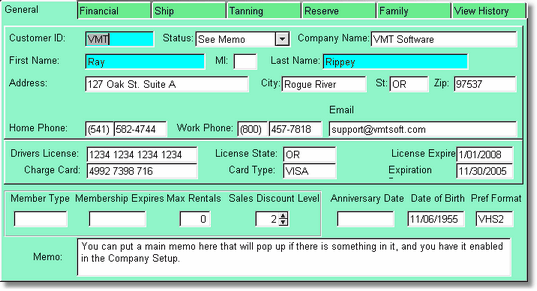
If you are not using the customer wizard to add a new customer, or if you are changing a customers information, the above screen will be displayed.
Customer Data Entry
Press INSERT from the Customer Lookup Table to add a new customer. Type information in each field and press TAB. Press ENTER or click on OK to save.
Customer ID
You may enter up to 12 characters for the customer ID. Many stores use the customer phone number or drivers license number for ID, or you may make one up. Video Shoppe does not care what you use in this field, numbers, letters, or a mix of both. Make sure that you are consistent with your ID numbers, if you start with drivers licenses it is a good idea to stay with it. You can also auto assign ID numbers by using the customer wizard when adding, and setting up a customer id number in the More Company Info Area.
Customer Status
Enter the customer status if wanted. Anything entered in the status field, will display on the POS (Point of Sale) screen. Use the status field to indicate GOOD customer, BAD checks, SEE MESSAGE, etc. This can be useful if a customer leaves something at your store, or for anything you need to bring attention to. By entering the word MEMO, your clerk will be alerted to check the contents of the memo area by pressing or clicking F6 from the POS screen. This will display the memo on the POS screen.
There is an option in the Company Form, to have the memo displayed automatically if the memo has had anything typed into it. Using the status field for Memo Alerts, would only be necessary if you do not want the memos displayed automatically.
By clicking on the down arrow there are some default statuses you can choose from.
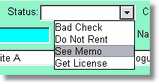
You may also type in up to 10 characters of anything you like. If you type in a tilde ( ~ ), the customer will not be allowed to rent items.
Customer Name
Enter the Customer First Name, Middle Initial, and Last Name. In the Customer Table, by Name all customers are displayed in last name order. You can not enter a customer without entering a first and last name. After entering the customers name you can save the customer by pressing ENTER. This is useful when entering new customers from the POS screen when you are in a hurry. Do not forget to go back later and fill out the rest of the customer information.
Address
You may enter up to 30 characters and numbers for the customer address. Press TAB after you have finished typing in the address.
City, State, Zip
Enter up to 18 characters for the City. Use the standard state abbreviations for the state field. Zip code allows 5 digits. Press TAB to move to the next field.
Work Phone
Enter the customers work phone number and area code if needed and press TAB.
Home Phone
Enter the home phone number including the area code and press TAB.
Drivers License Number
Enter the customers drivers license ID number and press TAB.
Drivers License State
Enter the 2 letter abbreviation of the state the customers drivers license number was issued in.
Expire
Enter the date the drivers license expires, press TAB.
Charge Card
Enter the Charge Card number if you want to track it. The Charge Card number is displayed on the POS screen when Credit Card is selected for the payment method. This number must be entered if you have the option turned on in the Company Form to require a credit card to rent. If there is a button that says Charge Card, you can click on it to scan the card in using a card reader.
Card Type
The Card Type, I.E. Visa, M/C, etc., will be displayed on the POS screen, if you choose Credit Card for method of payment.
Expiration Date
Enter the expiration date of the charge card. This date will be displayed on the POS screen. Video Shoppe checks to see if the card is current when you have turned on the Credit Card Alert in the Company Form. This date is also important if a customer needs a credit card before they can rent. You do not need to enter any credit card information if none of these options are turned on.
Member Type
Video Shoppe is capable of using many different memberships or it can be set up to use NO memberships. If your store does not use any special type of memberships press TAB, leaving this area blank. If your store uses memberships, to rent movies to groups of people at special rates there are several steps that need to be taken.
First set the membership up in the Membership Form found from the Inventory Maintenance menu. You can not sell a membership to a customer until this is done. Type in the abbreviation for the Membership Type and press TAB. A table of member types will display if you enter the wrong abbreviation. If you can not remember the membership types press TAB after you enter one or more characters for a Member Type that is not valid. To add a Member Type from the Member Table press the INSert key, fill out the Member Type Form and click on OK. The new Member Type will be shown in the table, press ENTER to pick this Member Type for the customer, or click on Select.
Make sure that you enter any new membership types in the Membership Form found under Inventory Maintenance. You can not sell a membership, or make a customer a member if this is not done. After the Member Type is set up, you will need to refer to the Store Maintenance chapter to set pricing for that Member Type. Memberships can be beneficial when sold to senior citizens or other groups of people.
Membership Date
This will be entered automatically for you when, and if, you sell a membership to this Customer.
Sales Discount Level
Video Shoppe allows four levels of customers that are related to items in the Sales Inventory. When sales items are entered, you have the ability to establish four levels of Customer Pricing and three levels of quantity pricing for each item.
Example: An Inventory Item can have a price for a level 0 customer quantity 1 to 10, 11 to 20, 21 plus. The same item can have a customer level 1 price, for the same quantities that can be the same or different. If a customer has a level 0 and buys 2 items, they would be charged the price in inventory for a level 0, quantity 1 to 10.
If you do not want to use the various pricing levels available, set all customers to a level 0 and fill out only the level 0 prices for inventory. Pricing can always be changed later, and you can change a customers level to match.
Special Days
Video Shoppe can notify you of a customers birthday, or a customers anniversary, if you have entered these dates, and turned on the alert for anniversary and birthday in the Company Form. Anniversary refers to the customers anniversary date, this date is not required.
DOB - Date of Birth
Enter the Date of Birth if you would like. The date of birth will display on the POS screen. It is useful for a visual check to confirm that you are renting to the right person. Also, there is a birthday alert that you can turn on in the Company Setup.
Memo
You have up to 120 characters you may enter into the memo field. Notice as you reach the end of the first line, the memo field automatically wraps your text to the next line.