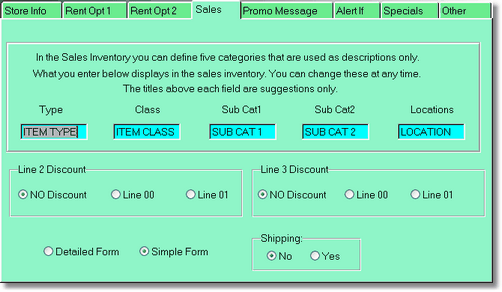
The Type, Class, Subcat1, Subcat2, and locations fields are just names of those fields in the sales inventory screen. This lets you customize your sales inventory editing screen to match the kind of inventory you sell.
WARNING: If you are not using special automatic sales discounting or markups, skip the next section, as this could actually fry your brain!
In the Detailed sales form, you can setup discounting by customer level. There are 4 levels of customers, 0 - 3. All customers are automatically a 0 level. If you setup a customer to be a level 1 - 3, the price will come from that line of pricing.
Let me try to put the concept as simple as possible. If you have no discounts setup in the company setup, then lines 0 - 3 are prices, or they are markups from the cost if they are negative values. You set the customer to the level of price you want to use, 0 - 3.
Now, if you setup discounting in the company form, the line you setup for discounting (line 2 or 3) will discount the price from the line you told it to discount from (line 0 or 1).
(Confused yet...)
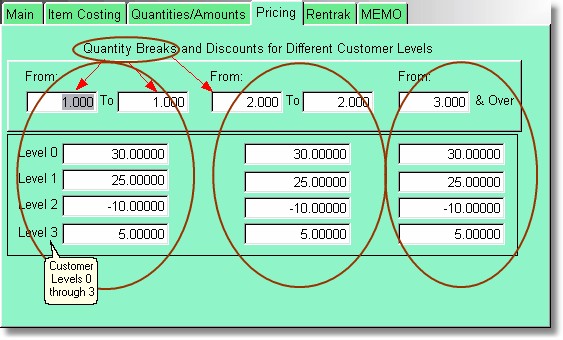
Detailed Sales Inventory Pricing Screen
If we have no discount setup for line2 discount and line 3 discount, the prices will work as normal. Let's just assume for all examples we are only selling one item. Also, our cost is $20 for this item.
Level 0 - $30,
Level 1 - $25,
level 2 - $22.22 (because it is a negative number, it marks up 10% from cost)
level 3 - $5.00
Now, let's try some discounting. In the company form I will set both Line 2 and Line 3 to discount from line 0 ($30).
When I set the customer to level 2, the price is now $27.00, because line 2 is a negative number and is using discounting, it takes off 10%.
When I set the customer to level 3, the price is now $25.00, because it simply subtracted line 3 from line 0.
So, when I am using line 2 or 3 for discounting from lines 0 or 1, negative numbers (in lines 2 or 3) subtract a percentage (from lines 0 or 1), and real numbers (in lines 2 or 3) subtract that amount (from lines 0 or 1).
Getting Crazy!
So, let's set line 1 to be a markup from cost of 10% by putting in a -10.00 in line 1.
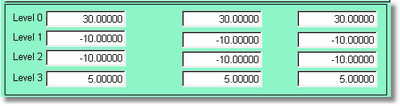
Let's also tell the company setup that we will use lines 2 and 3 to discount from line 1.

So if the customer is level 1, they will get the price in line 1, which is a 10% markup from cost or $22.22. Therefore, if the customer is a level 2 and level 2 discounts from line 1 10%, the price will be $20.00 (which incidentally proves how markup works)!
If the customer is level 3, it will discount $5.00 from the result of line 1 ($22.22) for a price of $17.22.
Detailed Form or Simple Form
Setting the above sales parameters requires the Detailed Sales Form. However, most businesses will only need the simple form. You only type in the price in one location. (And now you're wondering why I didn't tell you that in the first place?!)
Shipping
If you have shipping turned on, the program will ask you how you want the product shipped, type of shipping, and price of shipping.