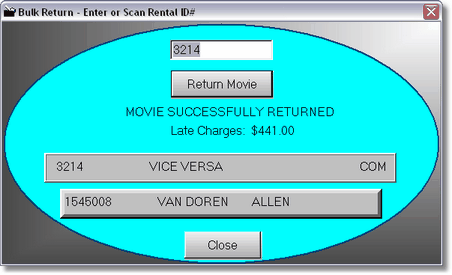
Here is a screen you'll probably get used to, Bulk Return. You can access this screen by pressing Ctrl-B from the First POS Screen, or clicking on the Bulk Return Button.
You just type in the ID number of the movie and press enter, or scan in the number (the scanner should press enter for you). Once you have scanned in the item, the program will lookup the customer, return the item, and add late charges to the customers record if applicable.
The customer ID will be memorized, so you can simply press Escape, and you will be brought back to POS Screen 1, and the customers ID number will still be there. You can then press enter and go to the POS Screen 2 for that customer.
If the transaction was not completed, there will be a notice below the return button notifying you. The program will memorize the customer ID for you at this time. So press escape or click close, and the customer ID will be displayed on POS screen 1. Just press enter, and you should see the movie on the screen. You will notice it only has an "R" or an "F" under the RSF column. Normally when the transaction is completed, it will change the rental item to a " PD " . So there are really only 2 reasons that this item was never processed. There may have been some kind of an error during the transaction process, perhaps a printer error or a disk error. Or the clerk may have backed out of the rental screen by pressing escape.
So now you have a decision to make. Usually this is going to be a day or more after the item should have been rented. So if you complete the transaction, your cash will be off for the day. If you cancel the item by pressing F9, highlighting the item, and pressing delete, it will not show in history that the customer ever really rented the movie.