All Browse Tables work basically the same way. You can use a mouse, or the keyboard, or a combination of the two. A table is a set of records, or a file. Each record has several fields. We call it a browse table because we can browse through the records in the table. When the table is first displayed, usually the first record is highlighted. Normally the table is sorted in either Alphabetical order, or in order of the selected Tab.
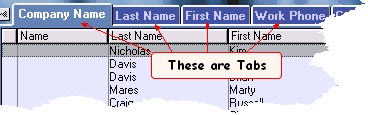
By clicking on the one of the Tabs, the table will change it's display, usually it will be in the order of the Tab selected. For instance, if you selected the Last Name Tab above, the table will display in last name order. This helps when you are searching for someone or something.
Most tables have an invisible "Locator". When you first display the table, or first select a Tab, you can start typing. As you type, the cursor bar will help you find the record you want. If you make a mistake while typing, or want to start over, you can erase what you've typed so far by typing the cursor up arrow (located to the right of the enter key on your keyboard), or just select another tab. If there are more tabs than will fit on the screen, the tabs may be scrolled by using the tab arrows (2).
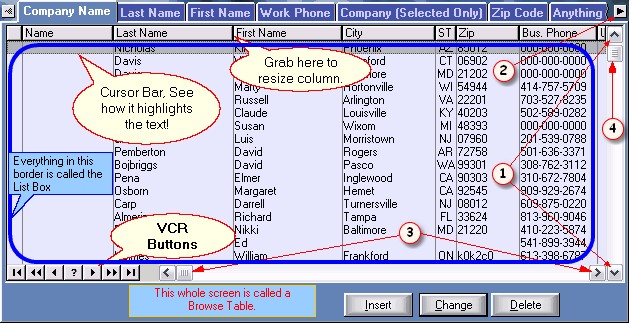
You may want to scroll through the records. Again, you can do that with the keyboard or the mouse. Using the mouse you can use the standard windows scroll bar located on the right side of the window (1). Simply click on it and the cursor bar will move up or down. You can also use your cursor up or down arrows on your keyboard for the same effect.
If you wish to scroll faster, you can press the Page Up or Page Down keys on your keyboard, or you can click above, or below the scroll button (4). In some cases you can also grab the scroll button and pull it down or up, then let go. However, the easiest way to scroll through the table using the mouse is by using the VCR Buttons  if they exist. Starting from left to right, they are the equivalent of the following keyboard commands respectively. CTRL Page Up, Page Up, Cursor Up, Help, Cursor Down, Page Down, CTRL Page Down.
Sometimes there is more information on a line that can fit onto the screen. In the above table, there are email addresses. To view that information, click on the horizontal scroll bar buttons (3) to scroll the information right or left.
Another way to search is by using the Fuzzy Search. You will only find it on certain screens. The Fuzzy search searches in all fields displayed by the browse table. It is slow because it goes through all records in the table. When it is complete, the records with the most matches will show up at the top of the table. For instance, if you searched for Smith, and there was a John Smith on Smith Road, it would show up first because there are 2 matches.

Only use this as a last resort. Be sure to click the clear button when you are done so all of your records show up again.
Once you have found the record you are looking for, you can press Enter, or double click to either select or change the record. If you are doing a "lookup" from another screen, the  button will be displayed. That means you are going to select the record to "pull in" some information into the previous screen. If the button is not shown, enter or double click will display the editing form so you can
  the record. You may of course use the or buttons.
Of course most of the time you will be adding new records. To add a new record to the table or file, click on the  button. A new editing form will display allowing you to add new information to the table. You may also just press the insert key on the keyboard to "insert" a new record.
Deleting a record works the same way, once the record is highlighted, click on the  button, or press the delete key on the keyboard.
You may also right click on a table record to get the 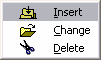 right click edit menu.