From POS Screen1 there is an appointment button for scheduling your tanning sessions for your customers. Simply click on the button and the following screen will display:
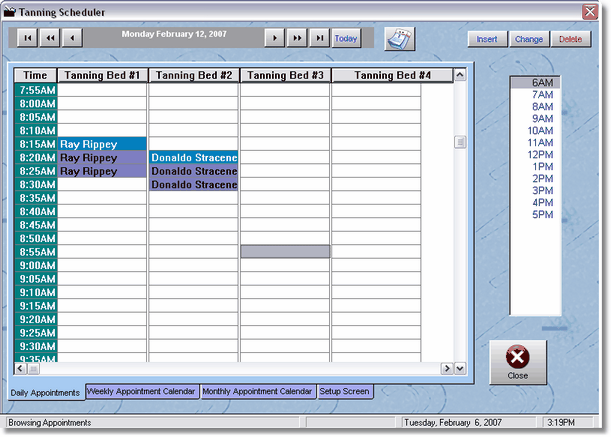
You can double click on the people and you can change their appointment time, or simply click and drag their appointment to another time. You can also just click, hold, and drag the appointment to another bed. On the right side of the screen is a time locator. Instead of scrolling down, just click on a time. Because the locator always shows in one hour increments, most of your day should display. If you are a 24 hour business, you may have to scroll down a bit. However, this is much easier, considering your times may be in 5 minute increments in the schedules.
To see a weekly reminder screen, just click on the bottom tab that says weekly appointment calendar.
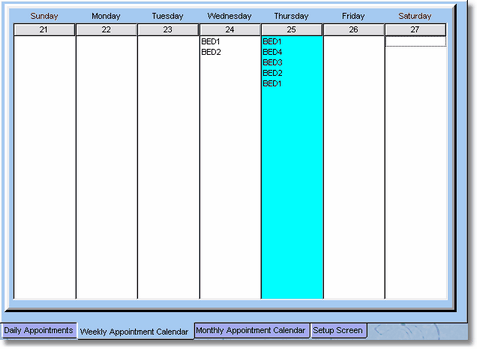
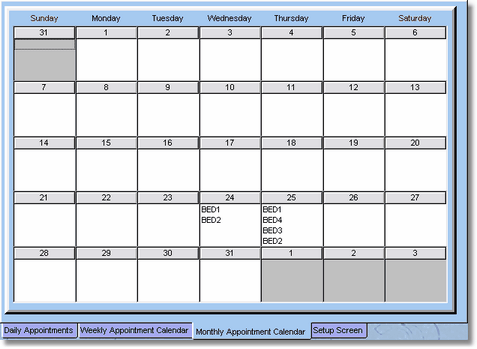
You may also setup appointments in this screen. You can just hover your mouse over an appointment and it will tell you who, and what time the appointment is for. This works on the Monthly Appointment Calendar as well:
Click on the Setup screen Tab to change the settings for the daily appointment screen, intervals (like 5 minutes, 10 minutes, etc.), and setting the colors.
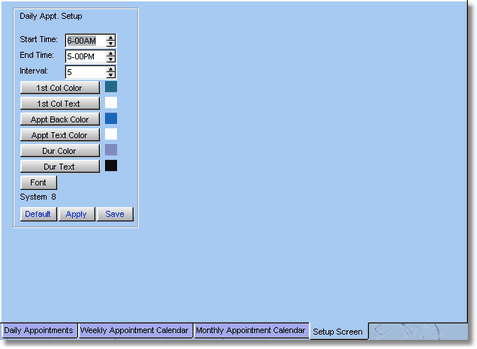
The interval, start time, and end time, will adjust how the daily appointment screen displays. For tans you will probably set your increment in 5 or 10 minute periods, remember you must allow time to clean the room before the next tan, and if the normal tan is 15 minutes, but some are only 10, it is easier to click the spin box up or down 5 minutes at a time.
The data for these appointments are backed up with all of your data. You should be able to completely get rid of your appointment book.